SYNC™ 4
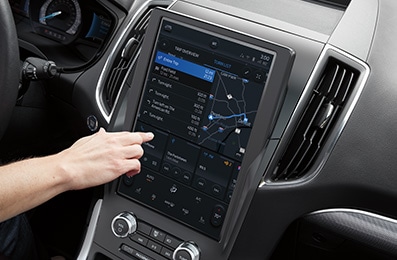
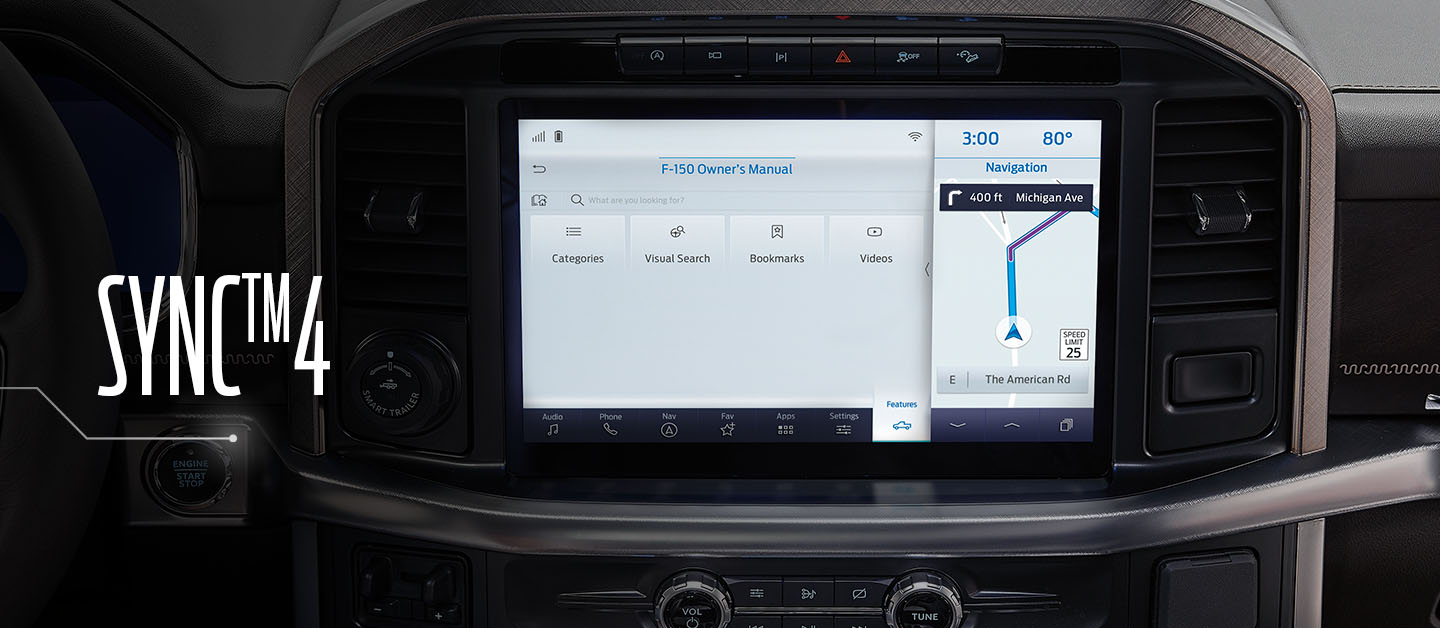
The latest generation Ford SYNC™ connects via the cloud to your Vehicle's communication system with all its entertainment features. Experience the ultimate level of connectivity with this wire-free integration including charging your mobile phone, planning trips and much more thanks to SYNC™ 4.
How do I activate Android Auto™* using SYNC™** 4?
SYNC™ 4 allows you to use Android Auto to access your phone and make calls, send and receive messages, or listen to music.
Supported devices
Wireless connection:
- Google or Samsung®*** smartphones with Android 10.0
- Samsung Galaxy S8®, Galaxy S8+®, and Note 9® (all using Android 9.0)
- All other Android™ smartphones with Android 11.0 and 5GHz Wi‑Fi
- USB connection: Android smartphones running Android 6.0 or higher, with an active data plan
- Download the latest version of the Android Auto app on your smartphone and other Google™**** apps including Google, Google Maps™, and Google Play™ Music.
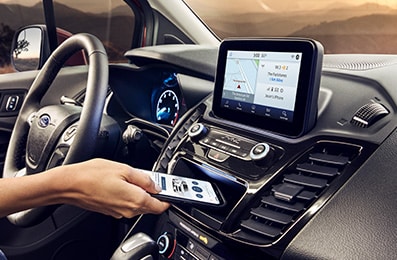
- Pair your Android Auto-compatible smartphone using Bluetooth®***** or, if required, connect it to a USB port using a high-quality USB cable. A pop-up message will appear on your SYNC screen the first time you connect.
- Select Continue.
- Agree to the Terms and Conditions on SYNC™ and on your smartphone. Android Auto will appear on your SYNC™ screen.
Note: Some SYNC™ features such as the optional navigation system and SYNC™ AppLink® will not be available when using Android Auto.
*Requires phone with active data service and compatible software. SYNC 4 does not control 3rd party products while in use. 3rd Parties are solely responsible for their respective functionality.
**Don’t drive while distracted. Use voice-operated systems when possible; don’t use handheld devices while driving. Some features may be locked out while the vehicle is in gear. Not all features are compatible with all phones.
***Samsung, Samsung Galaxy S8, Galaxy S8+, and Samsung Note 9 are trademarks of Samsung.
****Google, Google Maps, Google Play, and Android Auto are trademarks of Google LLC.
*****The Bluetooth word mark is a trademark of the Bluetooth SIG, Inc.
How do I connect Apple CarPlay®* to SYNC™** 4?
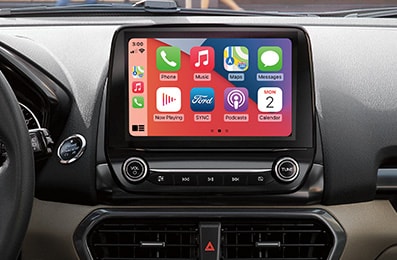
Apple CarPlay helps you control some apps from your iPhone®*** using Siri®, your vehicle's touchscreen, or steering wheel controls.
The steps below show you how to connect your iPhone with Apple Carplay to SYNC 4.
Phone is not paired
- Ensure you are in a safe, well-ventilated area and start your vehicle.
- Tap Phone on your vehicle's SYNC screen.
- Select Add Phone.
- Go to Settings on your iPhone.
- Tap Bluetooth.
- Select your vehicle name on your iPhone's discovery list. A Bluetooth Pairing Request pop-up will appear on your iPhone with a PIN.
- Confirm that the PIN matches the code displayed on your vehicle's SYNC screen.
- Tap Yes when prompted.
- Select Pair on your iPhone. Allow Contacts and Favorites Sync? will appear on your iPhone.
- Tap Allow to download phone contacts to your vehicle's SYNC system. After a few seconds, Use CarPlay with SYNC 4? will appear on your iPhone.
- Select Use CarPlay. Would you like to enable CarPlay? will appear on your vehicle's SYNC screen.
- Tap the Enable button. Connecting to Apple CarPlay will appear and Apple CarPlay will launch on your SYNC screen.
Phone is paired
- Ensure you are in a safe, well-ventilated area and start your vehicle.
- Tap Settings on your vehicle's SYNC screen.
- Select the Phone List setting.
- Touch the applicable iPhone from the displayed list.
- Select Enable.
*Requires phone with active data service and compatible software. SYNC 3 does not control third-party products while in use. Third parties are solely responsible for their respective functionality.
**Don’t drive while distracted. Use voice-operated systems when possible; don’t use handheld devices while driving. Some features may be locked out while the vehicle is in gear. Not all features are compatible with all phones.
***iPhone, Apple CarPlay, and Siri are trademarks of Apple Inc., registered in the U.S. and other countries.